

Blog
Digital Business Card Email Signature: 5 Easy Gmail and Outlook Steps

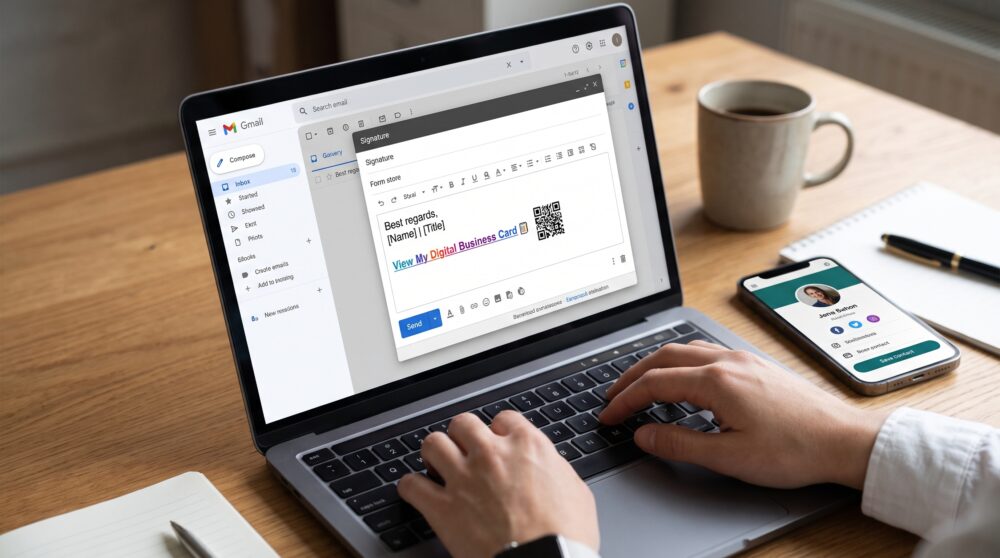
A digital business card email signature can turn every email you send into a professional networking opportunity. Instead of using an email signature that only shows your name and phone number, you can add a digital business card email signature that connects recipients to your contact details, website, portfolio, social profiles, booking page, and other important links.
A digital business card in your email signature is useful for freelancers, consultants, sales professionals, founders, creators, recruiters, and small businesses. It gives people a clear next step after they receive your email and makes it easier to save your information or continue the conversation.
In this guide, you will learn how to add a digital business card to Gmail, Outlook, and Apple Mail using a clickable link, QR code, and contact-saving profile.
Why use a digital business card email signature?
Your email signature appears in many professional conversations. It may be seen by prospects, customers, partners, event contacts, suppliers, and people who receive your message through forwarding. A simple signature can identify you, but an interactive digital card can help the recipient take action.
With one link, you can share your professional contact details, website, portfolio, services, social profiles, booking calendar, store, or lead form. You do not need to send several separate links in every email.
What is a digital business card email signature?
A digital business card email signature is a normal email signature with a link, button, image, or QR code that opens your online professional profile. This setup gives every recipient a simple way to view your current professional information. The profile may include your name, role, company, phone number, email address, website, social accounts, portfolio, booking link, and contact form.
It is different from attaching a traditional vCard file to every email. A vCard file can contain contact information, while a digital card can also provide a mobile-friendly page with updated links and clear actions.
How to add a digital business card email signature to Gmail
Step 1: Create your digital business card
First, create a professional digital card with your name, role, company, profile image or logo, contact details, and primary call to action. If you need a complete setup guide, read our article about how to create a digital business card.
Step 2: Copy your profile link
Copy the public URL of your digital card. Use a link that opens correctly on mobile devices and does not require the recipient to install an app. Test the URL in a private browser window before adding it to your signature.
Step 3: Open Gmail signature settings
In Gmail, open Settings, choose “See all settings,” and find the Signature section under the General tab. Create a new signature or edit an existing one.
Step 4: Add your details and link
Add your name, role, company, phone number, and a short call to action such as “View my digital business card” or “Save my contact.” Highlight the call to action and use Gmail’s link option to connect it to your digital profile.
You can also add a small QR code image if your audience often reads emails on a desktop and may scan the code with a phone. Keep the QR code clear and test it before using it in business communication.
Step 5: Test the signature
Send a test email to yourself. Open it on desktop and mobile. Check the link, QR code, phone button, email button, and any other links. Make sure the signature is not too large or distracting.
How to add a digital business card email signature to Outlook
Outlook users can add a digital card link or electronic business card to an email signature. Microsoft explains that an electronic business card can be included in an Outlook signature and that recipients may save the contact information. See the official Microsoft Outlook electronic business card guide for product-specific instructions.
Outlook desktop
Open Outlook’s signature settings, create or edit your signature, and add your name, role, company details, and digital card link. You can make text such as “View my digital card” clickable. If you use an image or QR code, insert it at a size that remains readable without making the signature too tall.
Outlook on the web
Open Outlook settings and find the Mail and Compose and reply sections. Add your professional information and paste the digital business card link into the signature editor. Send a test message to check how the signature appears to recipients.
How to add a digital business card to Apple Mail
On Apple devices, you can add a short call to action and digital card link through the Mail signature settings. Open your device settings, select Mail, choose Signature, and add your professional details. Because mobile email signatures can behave differently from desktop signatures, test the result from the device you use most often.
What to include in your digital email signature
- Full name
- Professional role
- Company name and logo
- Phone number or email address
- Website or portfolio
- Clickable digital card link
- One primary call to action
- Social profile when relevant
Keep the design simple. A signature with too many icons, banners, and links may look crowded and can be difficult to read on a phone. Choose the one action that matters most, such as booking a meeting, viewing your portfolio, or saving your contact.
Digital business card link vs. vCard attachment
A vCard attachment can be useful when you want to send contact information directly. However, an online digital business card can offer more context. It can include updated links, services, media, products, social profiles, and a contact form.
How Bambl helps you create a digital business card email signature
Bambl lets you combine a digital business card with a smart link-in-bio profile. You can place your Bambl link in Gmail, Outlook, Apple Mail, proposals, invoices, social profiles, and other professional channels.
Your profile can include contact details, a one-tap contact-saving action, portfolio links, social profiles, booking pages, products, media, lead forms, and a dynamic QR code. This means one email signature can lead to more than a phone number or plain website homepage.
If you also use QR codes in printed materials or presentations, our QR code business card guide explains how to create and test a professional QR sharing experience. For event-based networking, see our guide to using a digital business card for networking events.
Common email signature mistakes
- Using a broken or outdated digital card link
- Adding too many competing calls to action
- Using a QR code that is too small to scan
- Forgetting to test the signature on mobile
- Publishing private information unintentionally
- Leaving old job titles or phone numbers in the signature
Frequently asked questions
Can I add a digital business card to Gmail?
Yes. You can add a clickable link to your digital card through Gmail’s signature settings. You can also add a QR code image if it is clear and useful for your audience.
Can I add a digital business card to Outlook?
Yes. You can add a link, image, or electronic business card to an Outlook signature. Test the signature in the Outlook version your team uses because desktop and web settings may differ.
Should I add a QR code to my email signature?
A QR code can be useful when a recipient reads your email on a computer and wants to open your profile on a phone. Use it only when it remains large enough to scan and when the destination offers a clear benefit.
Final thoughts
Adding a digital business card to your email signature is a simple way to make every professional email more useful. A well-designed signature can help people save your contact, visit your portfolio, book a meeting, or discover your business without searching for separate links.
Keep your signature short, use one clear call to action, test it on desktop and mobile, and update the profile whenever your professional information changes. With Bambl, you can share your contact details, smart links, QR code, portfolio, and lead-generation options from one professional profile.




One thought on “Digital Business Card Email Signature: 5 Easy Gmail and Outlook Steps”