

Blog
How to Create a QR Code Zoom Background for Networking

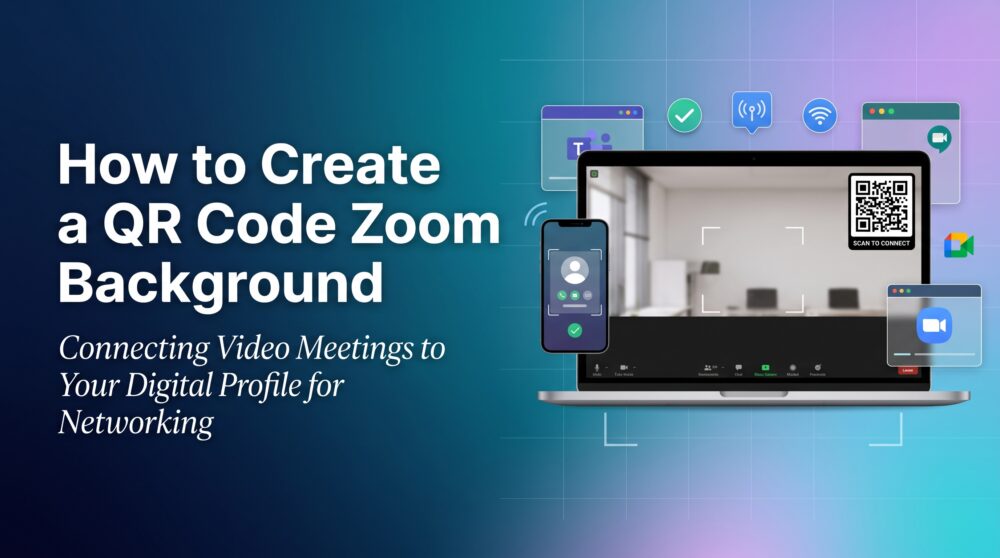
Video meetings are now an important part of networking, sales, recruiting, consulting, and client communication. A professional virtual background can make your video presence more consistent, but it can also do more than display a logo. By adding a QR code to your Zoom background, you can give meeting attendees a simple way to save your contact, visit your portfolio, or book a follow-up call.
A QR code Zoom background connects your on-screen presence with a mobile-friendly digital profile. In this guide, you will learn how to create one, where to position the QR code, how to test it, and how to use it in Zoom, Microsoft Teams, and Google Meet.
Quick answer: Use Bambl’s free virtual background generator to add your name, company, QR destination, and preferred layout, then download a 1920×1080 background and scan it from a phone during a test meeting.
What is a QR code Zoom background?
A QR code Zoom background is a branded meeting background that includes a scannable code. The code can open a digital business card, portfolio, website, booking calendar, product page, or contact form.
It is useful when a participant joins a sales call, webinar, interview, online conference, or presentation. Instead of typing your information in the chat, the attendee can scan the code from another phone and continue the conversation later.
Why use a QR code on a Zoom background?
Make contact sharing easier
Meeting attendees may not have time to copy your phone number or search for your company. A clear QR badge creates a visible next step while your conversation is happening.
Support your brand
A branded background can use your company colors, logo, name, role, and professional setting. This creates a more consistent appearance for client calls and team presentations.
Help generate leads
Your QR code can lead to a booking page, inquiry form, product demo, or digital card. This allows a meeting participant to take action without waiting for a follow-up message.
Work across different meetings
You can use the same background in sales calls, webinars, interviews, investor meetings, and networking sessions. Update the destination behind the QR code when your campaign or offer changes.
How to create a QR code Zoom background
Step 1: Choose the QR destination
Decide what you want attendees to see. A digital business card is useful for networking. A booking page is useful for consultants and sales teams. A portfolio or product page may be better for designers, agencies, and creators.
Step 2: Open the virtual background generator
Use Bambl’s free virtual background generator to enter your name, job title, company, and QR link. The tool provides professional templates, a customizable badge, and a camera safe area guide.
Step 3: Choose a background design
Select an executive office or professional template, or upload your own high-resolution image. Keep the background clean enough that your face and the QR badge remain easy to recognize.
Step 4: Position the QR badge
Place the badge in a corner that will not be covered by your head, shoulders, meeting controls, or participant windows. A top corner often works well, but check how your camera framing appears in the platform you use.
Step 5: Download and test the background
Download the 1920×1080 background and apply it to a test meeting. Scan the code from a phone while the background is visible on the screen. Check the result with and without video compression.
How to use a QR code background in Zoom
Open Zoom settings and choose Backgrounds and Effects. Select the plus button, upload your downloaded background, and apply it. Check whether your video is mirrored. If the QR code looks reversed in your preview, adjust the mirror setting and test it from another device.
Keep your camera framing stable. If you move too close to the camera or the background is cropped, the QR badge may become difficult to scan.
How to use it in Microsoft Teams
In Microsoft Teams, open the background or video effects controls before joining or during a call. Upload the generated image and apply it. Test the background in a private meeting to confirm that the QR code remains visible and that your face does not cover the badge.
How to use it in Google Meet
Open the visual effects menu in Google Meet and choose the option to upload a background. Select your image and preview the result before joining the call. Make sure the QR code is not hidden by interface elements or excessive cropping.
What should the QR code open?
The destination should match the purpose of the meeting. A digital business card can combine your name, company, contact details, social links, portfolio, and booking page in one place.
A landing page may be better for a product launch or webinar campaign. A booking calendar can reduce friction after a sales conversation. A lead form can help you collect a name, email, and message, but keep the form short and explain how the information will be used.
With Bambl, your QR code can connect to a digital profile with contact saving, professional links, and lead-generation options. You can also use a dynamic QR destination when you need to update the link without replacing the background image.
QR code background design tips
- Use a high-contrast QR code and background
- Keep the badge large enough to scan from a phone
- Leave space around the QR code
- Use a short instruction such as “Scan to save my contact”
- Keep your face and shoulders away from the badge
- Avoid busy patterns behind the QR code
- Test the image after platform compression
Who can use a branded virtual background?
Sales professionals can use a background to share a booking link or product page. Consultants can connect a QR code to their digital card and case studies. Recruiters can link to a professional profile or open roles. Founders can share a company page during investor meetings. Creators can connect the code to a portfolio, media kit, or social hub.
How to make every virtual meeting more useful
A QR code background should support the conversation rather than distract from it. Keep the design professional, explain the benefit of scanning, and mention the QR code when it is relevant.
For example, at the end of a sales demo, you can say, “You can scan the code in the corner to save my contact and book a follow-up call.” This gives the attendee a clear reason to use the code.
For in-person and event networking, you can also read Bambl’s guide to a digital business card for networking events. You can also learn how to create a digital business card for the QR destination. If you want to create a QR code for printed materials, see the free custom QR code generator.
Common mistakes to avoid
- Placing the QR code behind your head or shoulders
- Making the code too small to scan
- Using a low-contrast design
- Forgetting to test mirror settings
- Sending attendees to a slow or outdated page
- Adding too much text to the background
- Failing to test on Zoom, Teams, and Meet
Frequently asked questions
Can I add a QR code to a Zoom background?
Yes. You can create a 1920×1080 background with a QR badge and upload it to Zoom. Test the code from a phone while the background is displayed in a meeting.
What size should a Zoom virtual background be?
1920×1080 pixels is a common Full HD size for virtual meeting backgrounds. It provides a 16:9 format that works well for many modern video platforms.
Can people scan a QR code from a video call?
Yes, if the code is large enough, has strong contrast, and is not blurred by video compression. Test the code from the distance and screen size your attendees are likely to use.
A QR code Zoom background can turn an ordinary video meeting into a more useful networking experience. Use a clean design, place the badge in a safe corner, connect it to a relevant destination, and test the final result before an important call.
Start with Bambl’s free virtual background generator and create a professional meeting background that helps attendees remember you and continue the conversation.
